This HDR test checks whether your screen is really showing high dynamic range. It reads what your browser reports about the display: dynamic range, color gamut, bits per color and which HDR video formats it can decode. It explains what that means on your system, then shows real HDR test content, brightness steps from 100 to 4000 nits in an HDR10 video and an HDR image, next to the page's own white. It works in Chrome, Edge and Safari on Windows, Mac, iPhone, iPad and Android, and in Firefox with fewer HDR features.
How to run the HDR test
- Turn HDR on. On Windows 11, open Settings, then System, then Display, choose the HDR screen and switch on HDR. On a Mac with an external HDR display, open System Settings, then Displays, and turn on High Dynamic Range.
- Open this page in Chrome, Edge or Safari, on the HDR screen. With two screens, drag the window across first.
- Read the panel at the top. Dynamic range should say High.
- Look at the wide gamut pairs. On a wide gamut screen the right half of the red, green and magenta pairs looks deeper, and the letters P3 appear in the hidden mark.
- Compare the brightness steps with the Page white square. With HDR working, the steps above 200 nits glow brighter than the white square.
- Press Copy results to paste the readings into a forum post or a support ticket.
What the results mean
| Reading | What it tells you | What you want for HDR |
|---|---|---|
| Dynamic range | Whether the system shows this screen in HDR | High |
| Video dynamic range | Whether video can play in HDR | High |
| Color gamut | The widest color range the screen reports | Display P3 or Rec. 2020 |
| Bits per color | How many shades per color the system sends | 10 |
| HDR video formats | HDR10 formats the browser can decode | VP9, AV1 or HEVC |
| Brightness steps | How far highlights go above page white | Several steps brighter than the white square |
A browser can only report what the operating system tells it. High means HDR is switched on for that screen. It says nothing about how good the screen is at HDR, which is what the brightness steps show.
Reading the HDR brightness steps
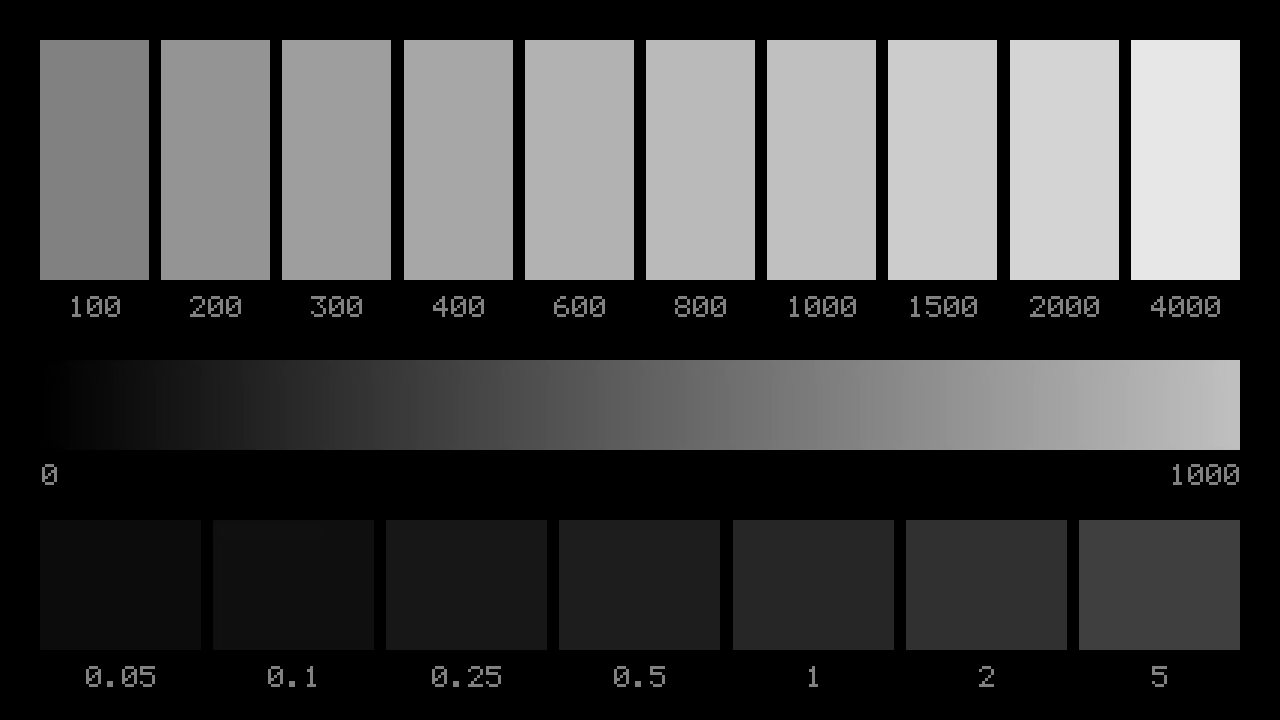
Each patch in the clip and the image asks the screen for a set brightness in nits, from 100 to 4000. A screen cannot go brighter than its peak, so it compresses everything above it, called tone mapping. Find the last patch that still looks brighter than the one before it: that is roughly where your screen tops out. Treat it as an estimate. Screens roll off highlights gently, and many get dimmer when a large part of the screen is bright, so small highlights in films can look brighter than these patches.
The bottom row runs from 0.05 to 5 nits. An OLED shows the faint 0.05 and 0.1 patches against true black. On most LCDs the first patches merge into the grey of the backlight. The ramp in the middle runs smoothly from black to 1000 nits in 10 bit steps. Visible bands in it point to an 8 bit link somewhere between the computer and the screen.
HDR is off, or the switch is missing
On Windows:
- Turn on the monitor's own HDR setting first. Some monitors also need HDR or deep color enabled for the input you use.
- Use DisplayPort if the monitor has it, which is also Microsoft's advice for HDR. 4K at 60 Hz in HDR does not fit through HDMI 2.0 at full color, so over HDMI use an HDMI 2.1 port and an Ultra High Speed cable. If HDMI 2.0 is all you have, Microsoft suggests 30 Hz, or 1920 × 1080 at 60 Hz.
- With a laptop and an external screen, choose Extend these displays. HDR does not work while duplicating.
- On laptops, Windows may turn HDR off on battery. The option is in the HDR settings for the built-in screen.
- Update the graphics driver from the maker's website.
On a Mac: external HDR10 displays get a High Dynamic Range switch in System Settings, then Displays. Built-in XDR screens on MacBook Pro switch to HDR on their own when HDR content is shown.
On a TV used as a monitor: turn on the TV's full bandwidth option for that HDMI input. LG calls it HDMI Ultra HD Deep Colour, Samsung calls it Input Signal Plus and Sony calls it Enhanced format. If the picture drops out when you change it, see hdmi no signal.
HDR looks washed out, dim or grey
- The desktop looks grey. Windows shows ordinary apps at the level of the SDR content brightness slider in the HDR settings. Raise it.
- Highlights look no brighter than white. The screen may have little HDR headroom. Check the brightness steps: if nothing goes past the page white, HDR adds little on that screen.
- Calibrate. On Windows 11, the free Windows HDR Calibration app from the Microsoft Store runs three tests, for the darkest detail, the brightest detail and the maximum brightness, and saves a profile games can use. It also has a color saturation slider.
- Halos around bright objects. That is blooming from local dimming zones. Set local dimming to a medium level. The backlight bleed test explains the difference between blooming and bleed.
HDR400 compared with real HDR
The VESA DisplayHDR badges set minimum numbers. DisplayHDR 400 asks for 400 nits peak with black at up to 0.4 nits. DisplayHDR 600 asks for 600 nits with black at 0.1 nits and local dimming, and DisplayHDR 1000 asks for 1000 nits, black at 0.05 nits and dimming in many zones across the screen. The True Black tiers are for OLED, with black at 0.0005 nits. The current version of the standard also asks HDR400 screens for some dimming or better contrast, but many HDR400 monitors on sale were certified under older rules that did not. A screen needs either many dimming zones or OLED pixels to put a bright highlight next to a deep shadow, which is the point of HDR.
Wide color without HDR
Plenty of screens cover the P3 color range without being HDR. They show richer reds and greens in photos and films made for P3. If ordinary colors look oversaturated on such a screen, use its sRGB mode, and check colors with the color accuracy test.
Phones, tablets and TVs
Recent iPhones, iPads and many Android phones have HDR screens and show HDR video and photos without any setting. Open this page on the phone and compare the steps with the page white. A TV's built in browser rarely plays HDR in web pages, so test a TV from a computer connected over HDMI, with HDR switched on. For a resolution check on the same screen, run the 4k test.
What a browser HDR test cannot do
A web page cannot measure brightness in nits, so the steps give an estimate by eye, not a measurement. Screenshots and screen recordings do not capture HDR, so share copied results instead of screenshots. The color gamut reading only says which range a screen mostly covers, not how accurate its colors are. For a full check of pixels, uniformity and sharpness, use the monitor test online.
HDR test questions
How do I know if HDR is working?
Two signs together: this page says the dynamic range is High, and the brightest HDR steps look clearly brighter than the white square beside them. If the steps stop at the same white as the page, HDR is not reaching your screen.
Why does HDR look washed out on Windows?
Ordinary windows are shown at the level set by the SDR content brightness slider, under Settings, then System, then Display, then HDR. Raise it until the desktop looks normal. On a monitor without local dimming, HDR can look flat however you set it, so many people keep HDR off for desktop work.
Is HDR400 real HDR?
It is the entry level of the VESA DisplayHDR scale: at least 400 nits peak and black no brighter than 0.4 nits. Most HDR400 monitors cannot show a bright highlight next to deep black, so HDR looks only slightly different from SDR. Mini LED screens with many dimming zones, and OLEDs, show what HDR is for.
What is the difference between HDR10, HDR10+, Dolby Vision and HLG?
HDR10 is the base format, with one set of brightness information for the whole video. HDR10+ and Dolby Vision add scene by scene information so each scene is mapped to your screen's limits. HLG is used for broadcast TV and needs no extra information. The clip on this page is HDR10.
Why does the HDR clip look the same as normal video?
Either HDR is off in your system, the window is on a non HDR screen, or the browser maps HDR down to standard range. Turn HDR on, move the window to the HDR screen, and use Chrome, Edge or Safari, then press Check again.